How to Install
Install the Addin add-in directly from the Microsoft Office Add-ins store in Word
Microsoft Word: Office Add-ins Store
Use this flow on desktop Word when your Microsoft 365 account can access Office Add-ins.
1. Open the Add-ins Store
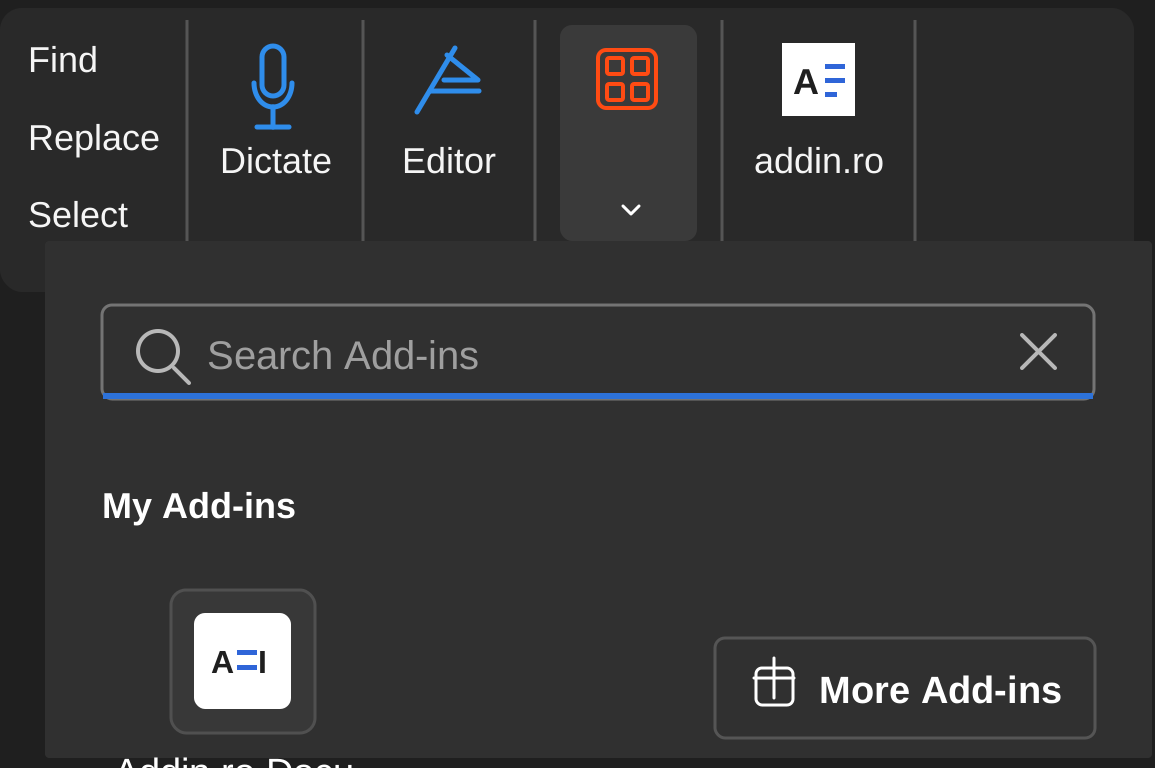
- Open Microsoft Word and go to Home > Add-ins.
- Click More Add-ins to open the Office Add-ins store.
2. Search for Addin.ro
- Set Sort by Name first, then search for "addin.ro".
- Find Addin.ro Document Assistant in the results.
- Alternatively, you can open the add-in's store page directly using the link below.
Open Addin.ro on Microsoft Marketplace
3. Add it to Word
- Click Add next to Addin.ro Document Assistant and accept the Microsoft permissions prompt if it appears.
- After installation, Addin appears in the Word ribbon and is ready to open.
